The perfect servers environnement

In this blog post i list the essential features a server environnement should have to be considered almost perfect :

  • 100 % automated image build and deploy to a store (Azure compute gallery, VmWare Content library, etc.).
  • 100 % automated server build mechanism, so no humain is involve for the server delivery.
  • 100 % automated server destruction mechanism.
  • Servers are shut down when not in use to save energy, hosts shut down, save cost in cloud.
  • Servers capacity are well used, right-sizing, automated size reviews, storage sizing, storage tier (archive, cold, hot, performance), tier reviews and auto-adjust, scheduled.
  • Predictable stability, i mean that if your servers are all built the same way, same tools, same versions, you then are in control of the environnement where you do modifications, you just have to take the software exceptions into account.
  • All the server function/roles are deploy automated, so you can rebuild the server if needed, you can migrate OS with a high level of confidence .
  • Receipes of auto-adaptability of most of the scenarios that your entreprise can have, ex. auto-storage provisionning in a controled environnement if batch need it, end of month CPU needed for some compliance reports
  • All (in/out) the network flows are controled and well known, they are validated from the server point of view
  • Servers utilization are controled and well known, ex. accounts that authenticate, protocol usage, number of requests per account, per protocol, per port, CPU usage, Memory usage, Network usage
  • Servers are 100% compliant to the business standards, all exceptions are documentation into the script that does the validation, this script if auto maintained by automation (server destroy, function/roles deployment) and validate every week.
  • All the server functions/roles are tested/monitor with automations, transactions are validated
  • All the access to functions/roles support teams are delegated remotly, no interactive logon, so deployment, support logs, software/infrastructure restart are delegated directly or by pipeline.
  • The environnement is auto-documented, server names, network flows, servers specs, account access, etc.

In that list i haven’t talk about backup, EDR, SIEM, patches, tooling etc.. only the server functions. We should take server management to a level where we almost never have to log to a server

Error Event ID 40 after January Security Update

January Security Update modify the permissions on HKEY_LOCAL_MACHINE\SYSTEM\CurrentControlSet\Control\WMI\Autologger\EventLog-Security

This result with errors in the Event Viewer after applying the january rollup update if you are using GPO to apply setting to Eventlog Security.

So here are the explanations :

If you have a GPO that uses this section (pretty common), then you are affected, this part of GPO uses the key I mention earlier

After January Security Updates when we apply GPO here what we can see

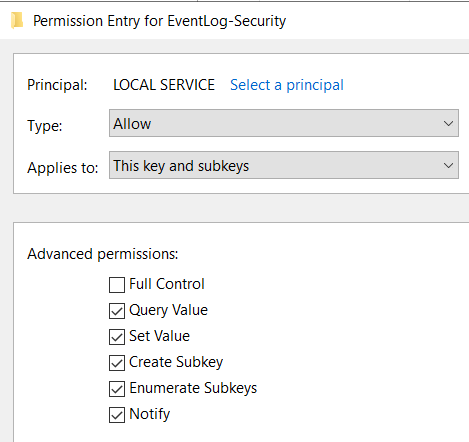
So Local Service try to Read/Write to this Key, let see what are the permissions after January patches

Local Service, which is part of Authenticated Users only have Read rights, BEFORE January patches, Authenticated Users was Full Control (and yes that’s kinda weird)

What is required not to have the error is giving Local Service the rights that it needed

You can see the EventID 40 on Windows 2012, 2016, 2019.

On Windows Server 2022, you get the Access Denied but no Event ID 40 !?!

Create an Azure Shared Image Gallery and deploy VM

Azure Shared Image Gallery is a really nice product in Azure where you can make available your images, replicate them in multiple regions and share images between multiple subscriptions. So if your enterprise uses many subscription for many reason, Shared Image Gallery give you the opportunity to keep only one set of images instead of have those images store in multiple subscriptions.

Deploy Shared Image Gallery

In my point of view, there not really a reason to deploy Shared Image Gallery as code since the idea is to only have 1 gallery. So i’ll go throught step by step to do it by the portal.

Deploy the Shared Image Gallery

I’ll use a new Ressource group named Images and call my Image Gallery « MyOrgImages »

Deploying this ressource is fast, about 20 seconds

You can Add a new image definition

At this time, you only have the definition of an image, nothing else. Now you need to integrate an image.

To do this, you first need to create a VM that you will after convert as Image

After the VM is completed, connect to this VM and generalized it by using sysprep

Since i shutdown the VM after the sysprep and a shutdown in the OS doesn’t do a proper shutdown in Azure, i also stop it in Azure to deallocate it.

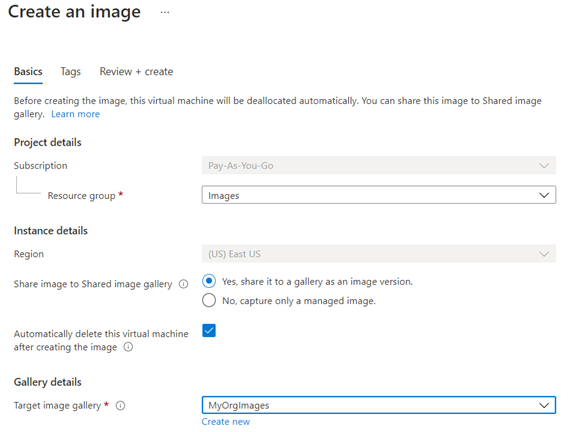
When Stopped (dealloacted), click on Capture and select the « Yes, share it to a gallery as an image version »

This step take around 15 minutes. As you can see i select to delete the VM when completed but this doesn’t delete everything related to the VM so you should do a cleanup (IP, NSG, NIC, Disk)

You can also add other regions where you want this image to be available.

Deploy a VM using an Image in Shared Image Gallery

For this part i prefered do it as a code since in most case that’s the way we should do it and it’s really easy to do it by the portal.

$imgDef="/subscriptions/xxxxxxxxxsubIDxxxxxxxxxxxxx/resourceGroups/Images/providers/Microsoft.Compute/galleries/MyOrgImages/images/Win2019Datacenter/versions/2021.03.0"
#Your destination resourcegroup
$vmResourceGroup="Images"
$location="eastus"
$vmName="My2019ServerName"
$adminUsername="Master"

#Your password, i'll use this funny one for now
$adminPassword="Solardwinds123"
$size="Standard_DS2_v2"
$licensetype="Windows_Server"

#Tag VM so easier in the future to search for VM build with the image
$tag="Img=MyOrgWin2019"

#destination Subscription ID
$subscription="xxxxxxxxxsubIDxxxxxxxxxxxxx"

az vm create --subscription $subscription --resource-group $vmResourceGroup --name $vmName --image $imgDef --admin-username $adminUsername --admin-password $adminPassword --size $size --license-type $licensetype --tags $tag 

Trouble with Windows Server 2016 SCOM Management Pack

Hi,

It has been a long time since i posted. I’ll try to get back to this blog for the next year.

At work i recently had to investigate why the Microsoft SCOM management pack for Windows Server 2016 was not completely working on some of the 2016 servers. The Logical disks discovery was not working in the management pack. The management pack relies on WMI calls and the version of the management pack (the current version as i’m writing) uses remote calls for this monitor. So your remote WinRM needs to be working. You can test this by running “C:\WinRm id “and comparing the result with “C:\WinRM id -r:yourmachinename”. In my case the second one was not working.

I start looking into forums and everything was pointing on the winhttp proxy setting, that you need to reset this setting to have the “Direct” configuration, but that didn’t work.

What i found is that in my machine configuration policy (GPO, DSC) I had this WinRM setting :

Computer Configuration\Administrative Templates\Windows Components\Windows Remote Management (WinRM)\WinRM Service

Allow remote server management through WinRM – IPv4 = * and IPv6 = “”

The IPv6 settings to “” says that it’s refused

So because the management pack use a remote call (can’t understand why since it’s running locally) to get the Logical Disks monitors, the IPv6 was use prior than the IPv4 and was refused. One was could have been to disable the IPv6 on the server, but since it’s not a good practice, i just reconfigure the policy the have

Allow remote server management through WinRM – IPv4 = * and IPv6 = *

Only a GPO update was required to make it work again, no reboot needed.

I hope this post could help you