The perfect servers environnement

In this blog post i list the essential features a server environnement should have to be considered almost perfect :

  • 100 % automated image build and deploy to a store (Azure compute gallery, VmWare Content library, etc.).
  • 100 % automated server build mechanism, so no humain is involve for the server delivery.
  • 100 % automated server destruction mechanism.
  • Servers are shut down when not in use to save energy, hosts shut down, save cost in cloud.
  • Servers capacity are well used, right-sizing, automated size reviews, storage sizing, storage tier (archive, cold, hot, performance), tier reviews and auto-adjust, scheduled.
  • Predictable stability, i mean that if your servers are all built the same way, same tools, same versions, you then are in control of the environnement where you do modifications, you just have to take the software exceptions into account.
  • All the server function/roles are deploy automated, so you can rebuild the server if needed, you can migrate OS with a high level of confidence .
  • Receipes of auto-adaptability of most of the scenarios that your entreprise can have, ex. auto-storage provisionning in a controled environnement if batch need it, end of month CPU needed for some compliance reports
  • All (in/out) the network flows are controled and well known, they are validated from the server point of view
  • Servers utilization are controled and well known, ex. accounts that authenticate, protocol usage, number of requests per account, per protocol, per port, CPU usage, Memory usage, Network usage
  • Servers are 100% compliant to the business standards, all exceptions are documentation into the script that does the validation, this script if auto maintained by automation (server destroy, function/roles deployment) and validate every week.
  • All the server functions/roles are tested/monitor with automations, transactions are validated
  • All the access to functions/roles support teams are delegated remotly, no interactive logon, so deployment, support logs, software/infrastructure restart are delegated directly or by pipeline.
  • The environnement is auto-documented, server names, network flows, servers specs, account access, etc.

In that list i haven’t talk about backup, EDR, SIEM, patches, tooling etc.. only the server functions. We should take server management to a level where we almost never have to log to a server

Error Event ID 40 after January Security Update

January Security Update modify the permissions on HKEY_LOCAL_MACHINE\SYSTEM\CurrentControlSet\Control\WMI\Autologger\EventLog-Security

This result with errors in the Event Viewer after applying the january rollup update if you are using GPO to apply setting to Eventlog Security.

So here are the explanations :

If you have a GPO that uses this section (pretty common), then you are affected, this part of GPO uses the key I mention earlier

After January Security Updates when we apply GPO here what we can see

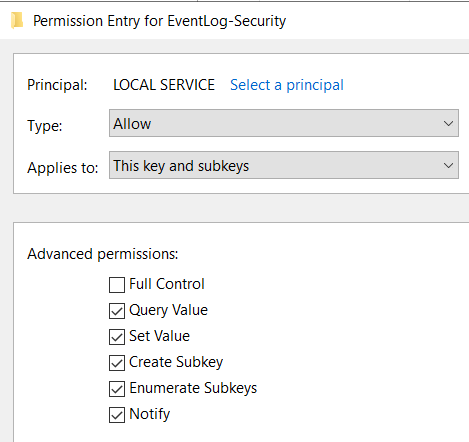
So Local Service try to Read/Write to this Key, let see what are the permissions after January patches

Local Service, which is part of Authenticated Users only have Read rights, BEFORE January patches, Authenticated Users was Full Control (and yes that’s kinda weird)

What is required not to have the error is giving Local Service the rights that it needed

You can see the EventID 40 on Windows 2012, 2016, 2019.

On Windows Server 2022, you get the Access Denied but no Event ID 40 !?!

Create an Azure Shared Image Gallery and deploy VM

Azure Shared Image Gallery is a really nice product in Azure where you can make available your images, replicate them in multiple regions and share images between multiple subscriptions. So if your enterprise uses many subscription for many reason, Shared Image Gallery give you the opportunity to keep only one set of images instead of have those images store in multiple subscriptions.

Deploy Shared Image Gallery

In my point of view, there not really a reason to deploy Shared Image Gallery as code since the idea is to only have 1 gallery. So i’ll go throught step by step to do it by the portal.

Deploy the Shared Image Gallery

I’ll use a new Ressource group named Images and call my Image Gallery « MyOrgImages »

Deploying this ressource is fast, about 20 seconds

You can Add a new image definition

At this time, you only have the definition of an image, nothing else. Now you need to integrate an image.

To do this, you first need to create a VM that you will after convert as Image

After the VM is completed, connect to this VM and generalized it by using sysprep

Since i shutdown the VM after the sysprep and a shutdown in the OS doesn’t do a proper shutdown in Azure, i also stop it in Azure to deallocate it.

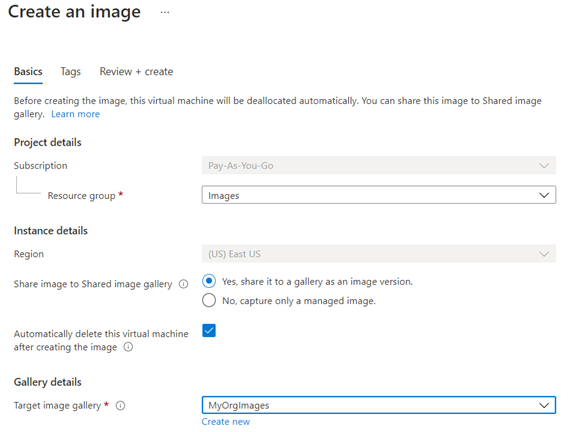
When Stopped (dealloacted), click on Capture and select the « Yes, share it to a gallery as an image version »

This step take around 15 minutes. As you can see i select to delete the VM when completed but this doesn’t delete everything related to the VM so you should do a cleanup (IP, NSG, NIC, Disk)

You can also add other regions where you want this image to be available.

Deploy a VM using an Image in Shared Image Gallery

For this part i prefered do it as a code since in most case that’s the way we should do it and it’s really easy to do it by the portal.

$imgDef="/subscriptions/xxxxxxxxxsubIDxxxxxxxxxxxxx/resourceGroups/Images/providers/Microsoft.Compute/galleries/MyOrgImages/images/Win2019Datacenter/versions/2021.03.0"
#Your destination resourcegroup
$vmResourceGroup="Images"
$location="eastus"
$vmName="My2019ServerName"
$adminUsername="Master"

#Your password, i'll use this funny one for now
$adminPassword="Solardwinds123"
$size="Standard_DS2_v2"
$licensetype="Windows_Server"

#Tag VM so easier in the future to search for VM build with the image
$tag="Img=MyOrgWin2019"

#destination Subscription ID
$subscription="xxxxxxxxxsubIDxxxxxxxxxxxxx"

az vm create --subscription $subscription --resource-group $vmResourceGroup --name $vmName --image $imgDef --admin-username $adminUsername --admin-password $adminPassword --size $size --license-type $licensetype --tags $tag 

RDS – Easy way to get User Cal usage

I recently went into a situation where i needed to get the RDS licensing usage per user to verify the count. So i went into the MMC snapin of Remote liscensing Manager, create a report, but it took like 30-40 minutes to generate and the result was not what i expected, the count doesn’t fit. I expect that maybe when another OS of the installed licences pack are use, example, TS 2012 servers using TS 2019 licences pack.

So to get my info i looked at the WMI classes used by RDS licensing and came out with this easy one liner in Powershell

Get-WmiObject -Query « select sIssuedToUser from Win32_TSIssuedLicense »

Microsoft Windows Defender Elevation of Privilege Vulnerability (CVE-2020-1163) & Microsoft Windows Defender Elevation of Privilege Vulnerability (CVE-2020-1163)

Hello,

I was in a situation where Windows Defender was not the antivirus configured on the Windows Server 2019 boxes and the vulnerability scanner trigger that the servers has 2 vulnerabilities related to Windows Defender. The issue is that if you dont use Microsoft Windows Defender, you can’t patch it. Since Microsoft Windows Defender is not started the vulneralibility is not exploitable. But since we wanted to provide a clean vulnerability report and if in the future the client decide to use Windows Defender it will be patched, so i needed to find a solution. Here’s what i did to be able to patch it (scriptable).

GPO :

Computer Configuration > Administrative Templates > Windows Components > Windows Defender Antivirus

Turn off Windows Defender Antivirus = Disable

Add to this GPO scope the servers that i wanted to patch (remove Authenticated Users from the « apply GPO » rights

Run gpupdate /force on the destinations servers

Copy and run the latest version of : mpam-fe Microsoft Defender Antivirus for Windows 10 and Windows 8.1(https://www.microsoft.com/en-us/wdsi/defenderupdates)

You should have new entries in the EventViewer under the section Microsoft-Windows-Windows Defender/Operational logs

If you verify Task Manager you will see that MsMPEng.exe is running

Copy and run updateplatform_e2a95a1a729b3e06ee156591826d0adb52502e5d (https://www.catalog.update.microsoft.com/Search.aspx?q=KB4052623) Latest Defender Antivirus Definition (~15 MB)

You should have new entries in the EventViewer under the section Microsoft-Windows-Windows Defender/Operational logs

You can know remove the servers from the GPO scope and run gpupdate /force on the destinations servers

No reboot needed

Hope that was useful

Hot-add CPU issue Windows Server 2016/2019 and VmWare ESXi => BSOD

There’s a known bug out there where if you add CPUs to a virtual machine running Windows Server 2016 or Windows Server 2019, the result is a BSOD. Latest VmWare tools, VmWare Hardware doesn’t fix the issue. Same thing for a roll back on those item. Microsoft works on a fix that should be release this month

SMB Signing

Hello,

Today’s subject, SMB Signing, since many of us are asked to be CIS, NIST, anything Compliance to standards, since most of us worked hard to removed SMB1 from the environnement, now SMB Signing.

The best document and where everyone is referring to is https://blogs.technet.microsoft.com/josebda/2010/12/01/the-basics-of-smb-signing-covering-both-smb1-and-smb2/

It’s kind of clear, on the first read, but you need to reread it many times and do your own testing with it. Here’re the conclusions of my tests :

Digitally sign communications (if server agrees) – Only apply to SMB1

Digitally sign communications (if client agrees) – Only apply to SMB1

So now you say.. SMB2 and SMB3 have it embedded…  and the answer is NO!

The only way to use SMB Signed is to enable Digitally sign communications (always), so now the question is, if I have a system that are incompatible with Signed SMB ? You can’t have both..

The workaround would be to use SMB Encryption instead, but now your Compliance team would not be happy because you don’t have Digitally sign communications (always) enable on every server, i’ll let you deal with this part. SMB Encryption is much secure than signing.

PLUS : SMB Encryption has a low footprint on the performance on Windows Server 2016 and UP. On 2008 R2 and 2012 R2, SMB Signing has a lower footprint on performance.

Demo Part :

Windows 2016 Default Config -> Windows 2016 Default Config

Get-SmbConnection | Select *

SmbInstance : Default
ContinuouslyAvailable : False
Credential : Confidential
Dialect : 3.1.1
Encrypted : False
NumOpens : 4
Redirected : False
ServerName : Confidential
ShareName : Confidential
Signed : False
UserName : Confidential
PSComputerName :
CimClass : ROOT/Microsoft/Windows/SMB : MSFT_SmbConnection
CimInstanceProperties : {ContinuouslyAvailable, Credential, Dialect, Encrypted…}
CimSystemProperties : Microsoft.Management.Infrastructure.CimSystemProperties

Part 2 :

Windows 2016 Digitally sign communications (always) -> Windows 2016 Default Config

Windows 2016 Default Config -> Windows 2016 Digitally sign communications (always)

Windows 2016 Digitally sign communications (always) -> Windows 2016 Digitally sign communications (always)

Get-SmbConnection | Select *

SmbInstance : Default
ContinuouslyAvailable : False
Credential : Confidential
Dialect : 3.1.1
Encrypted : False
NumOpens : 4
Redirected : False
ServerName : Confidential
ShareName : Confidential
Signed : True
UserName : Confidential
PSComputerName :
CimClass : ROOT/Microsoft/Windows/SMB : MSFT_SmbConnection
CimInstanceProperties : {ContinuouslyAvailable, Credential, Dialect, Encrypted…}
CimSystemProperties : Microsoft.Management.Infrastructure.CimSystemProperties

Part 3

To encrypt, you have 2 options, one really nice, per Share, on GUI you can use Server Manager (no you don’t have it in Computer Management), by powershell

Set-SmbShare –Name shareName -EncryptData $true

or

Set-SmbServerConfiguration –EncryptData $true 

To enable SMB encryption for every SmbServer connections

Beware! SMB Signing and SMB Encryption comes with increase in CPU Usage, be sure to monitor your CPU before and after to see if you are still OK.

vmStatsProvider event 256 – 258

If you are a user of VmWare platform and are often looking at you Application log in Windows, you are probably aware of the spam that vmStatsProvider brings with the events id 256  and 258. A lot of threads in forums since many years on this issue. Since i became angry about those spam in the EventViewer that i try to keep clean, i’ve worked to find the cause. I took my favorites sysinternals tools (ProcMon, Process Explorer) to demonstrate that the calls perform by our monitoring tools on the Performance counter of VM (that uses the vmware dll behind) were the source of those events. So i had a talked with a VmWare developper who kindly accepted to modify the behavior of the dll and it’s now included in VmWare Tools 10.2.5 (March 28 2018) !!!

Many stupid solutions like to remove the performance counters in your VmWare Tools installation were published in the past years and i’m really proud to have contribute to the Clean EventViewer Community of SysAdmin.

Enjoy!

CPU Speculation Control vulnerabilities

What better than a vulnerability that affect almost everything to start the new year ! We’ll start to work hard this year since this vulnerability needs you to patch the hardware, the OS (clients and servers), mobile devices, hypervisor, cloud machines, etc.. I don’t know about other cloud provider but i can say that Microsoft were pretty fast on patching Azure hardware and hypervisor. First we need to look how huge is the performance impact, specially on database and hypervisor servers.

There’s also a Powershell module to test your system ! Just run a elevated Powershell and install the module :

Install-Module SpeculationControl

Get-SpeculationControlSettings

After Microsoft patch and reboot i got

The Microsoft update is already available on Windows Update (prior to patch tuesday)

http://www.catalog.update.microsoft.com/Search.aspx?q=2018-01

In order to have Windows OS support for branch target injection mitigation is enabled : True you need to update the Bios with latest patch

After Bios update of tablet manufacturer

On an older machine I got

Now interesting to see how fast my motherboard manufacturer will be since it’s a 2012 motherboard..

So Suits Up and get to work!

Trouble with Windows Server 2016 SCOM Management Pack

Hi,

It has been a long time since i posted. I’ll try to get back to this blog for the next year.

At work i recently had to investigate why the Microsoft SCOM management pack for Windows Server 2016 was not completely working on some of the 2016 servers. The Logical disks discovery was not working in the management pack. The management pack relies on WMI calls and the version of the management pack (the current version as i’m writing) uses remote calls for this monitor. So your remote WinRM needs to be working. You can test this by running “C:\WinRm id “and comparing the result with “C:\WinRM id -r:yourmachinename”. In my case the second one was not working.

I start looking into forums and everything was pointing on the winhttp proxy setting, that you need to reset this setting to have the “Direct” configuration, but that didn’t work.

What i found is that in my machine configuration policy (GPO, DSC) I had this WinRM setting :

Computer Configuration\Administrative Templates\Windows Components\Windows Remote Management (WinRM)\WinRM Service

Allow remote server management through WinRM – IPv4 = * and IPv6 = “”

The IPv6 settings to “” says that it’s refused

So because the management pack use a remote call (can’t understand why since it’s running locally) to get the Logical Disks monitors, the IPv6 was use prior than the IPv4 and was refused. One was could have been to disable the IPv6 on the server, but since it’s not a good practice, i just reconfigure the policy the have

Allow remote server management through WinRM – IPv4 = * and IPv6 = *

Only a GPO update was required to make it work again, no reboot needed.

I hope this post could help you