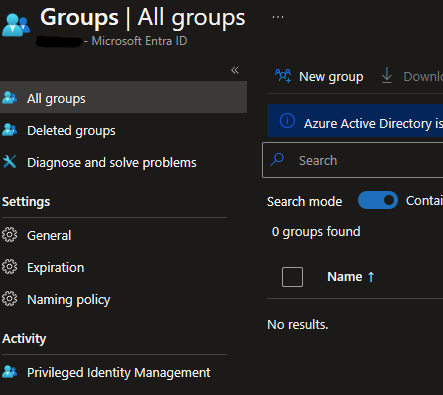
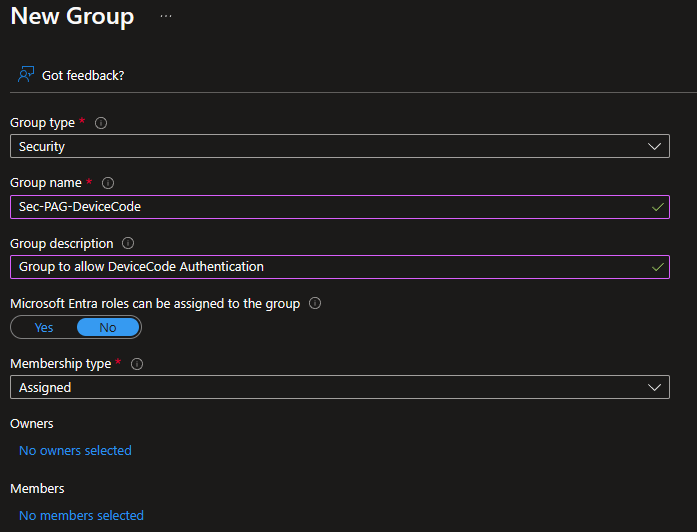
New capability to manage Device Code authentication in Entra ID. Here, I’ll show you how you can allow Device Code authentication only to a group that you need to Privileged Identity Management (PIM), a Privileged Access Group. So, unless you PIM this group, you won’t be able to use Device Code authentication. Device Code authentication is often used in phishing campaigns and poses a real risk to tenant security. Microsoft has listened to the user community and now brings the ability to manage who can use Device Code. Here, I’ll show you how I would implement this new capability.
Prerequisites :
Privileged Role Administrator
Entra ID Premium P2 licence
Conditional Access Administrator
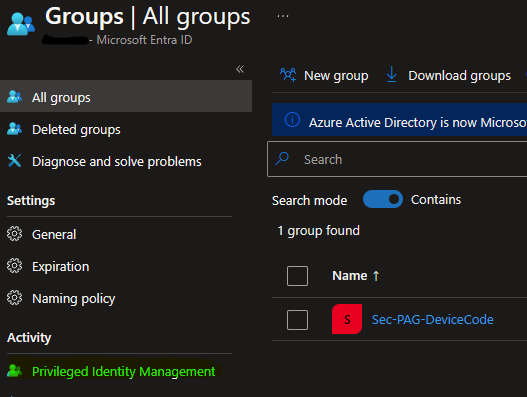
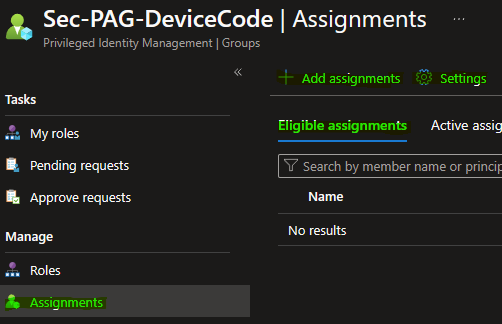
Create a Security Group
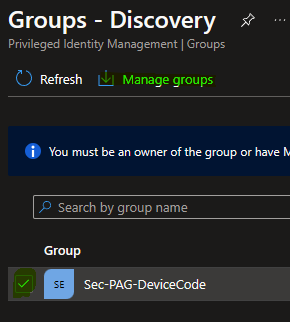
Convert the group as a Privileged access group
Assign users and configure settings for this group, you can configure allowed time (1 hour should be correct), required MFA
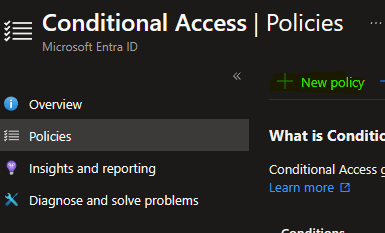
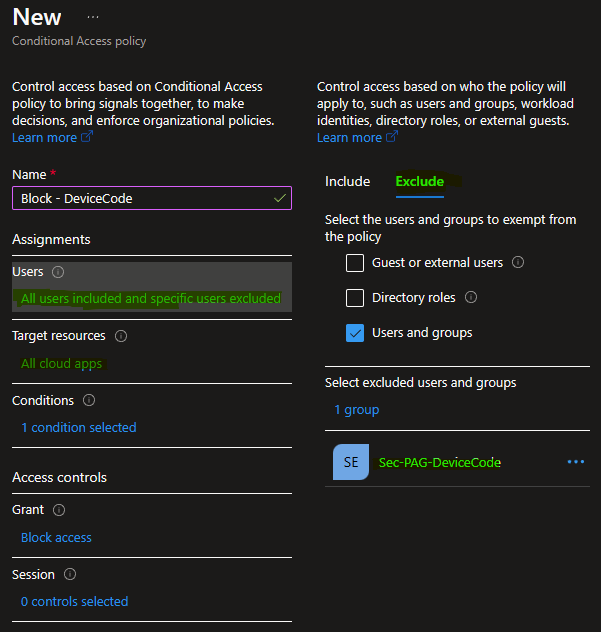
Create a Conditional Access Policy
Include All Users, Exclude your Break the glass accounts and the PAG you previously created
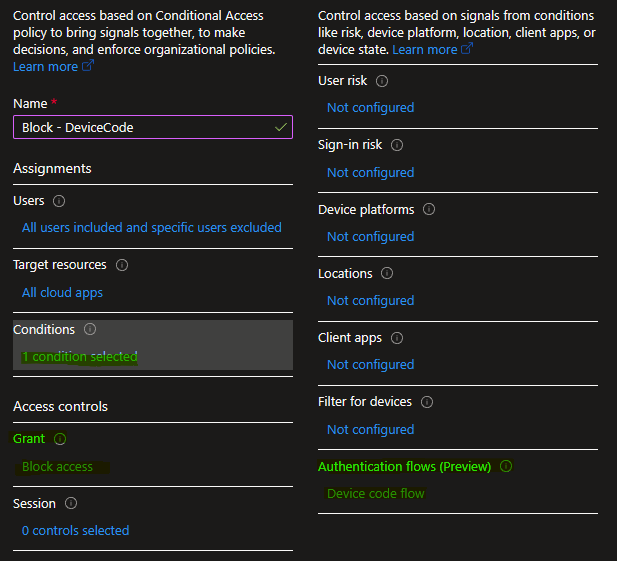
Add the Conditions for Authentication flows – Device code flow
Grant the Block Access
You are now done, so users assigned to this group now need to use Privileged Identity Management to PIM the Security Group to be allowed to use Device Code authentication.
Starting with Windows Server 2012 ESU (Extended Security Updates), Microsoft introduced the option to utilize Azure Arc for licensing and payment of ESUs. This approach offers numerous advantages, and I find few drawbacks apart from the need for secure usage of Azure Arc. It’s clear that Microsoft aims to encourage the use of Azure Arc for On-Premises servers to gain insights into the actual infrastructure running on these machines. This approach could simplify future billing processes, ensuring charges align closely with actual usage, eliminating reliance on honor-based estimations or costly audits.
The benefits of opting for this licensing model for ESUs include:
Monthly Payment Structure: Payment is on a monthly basis, eliminating the need for upfront costs.
Pay-As-You-Go: Payment is based on actual usage each month. When decommissioning machines, updating licenses in Azure results in reduced payments, ensuring costs reflect current infrastructure accurately.
Corporate Azure Rebates: Enterprises with corporate rebates on Azure prices also enjoy these benefits extended to ESU licensing, potentially reducing overall costs.
Elimination of Annual Deployment: Unlike traditional licensing models requiring yearly deployments for patches, this model potentially streamlines and eliminates the need for such frequent deployments, easing administrative burdens.
Licences Pack
If these reasons resonate with you and maintaining a new agent value less than those benefits, here are some suggested instructions I recommend following :
Verify that your Non-Prod servers comply with the criteria outlined to qualify for the free ESU Licenses (refer to https://learn.microsoft.com/en-us/azure/azure-arc/servers/deliver-extended-security-updates#additional-scenarios).
Generate an ESU License for each scenario that meets these criteria. Remember to apply the appropriate tag to ensure exemption from charges.
Issue an ESU License for DataCenter licenses utilized for VM Hosts, considering the cost efficiency between DataCenter and Standard Licenses based on the number of VM cores and licenses used.
Issue an ESU License for DataCenter licenses applied to physical Windows servers, if this scenario is applicable within your organization’s infrastructure.
Issue an ESU License for Standard licenses used on physical servers, if this scenario is relevant within your organization’s setup.
Azure Connected Machine Agent (Arc Agent)
Install the Azure Connected Machine Agent on the Windows 2012 boxes (in this example) and deploy it using your preferred tool.
Ensure the security of the Azure Connected Machine Agent by taking these steps:
Disable the guest configuration extension to prevent unauthorized access or alterations via Azure Policy. Only individuals with Administrative privileges on the machine should be able to affect it. Command: azcmagent config set guestconfiguration.enabled false
Set the default value to disallow extensions, allowing specific extensions selectively to maintain control over what runs on your machine. Command: azcmagent config set extensions.allowlist « Allow/None »
Disable the capability to install new extensions. Command: azcmagent config set extensions.enabled false
Implementing these configurations helps maintain tight control over access and extensions on your machines while using the Azure Connected Machine Agent. »
Securing the Azure Connected Machine Agent is crucial to prevent potential escalation paths from Azure to On-Premises environments. Consider the scenario where an improperly configured agent could allow a contributor in the subscription where Arc-enabled machines are set up to execute commands, potentially gaining Administrator rights on your machines like in this example :
Configure or deploy the settings of the Arc subscription to the Azure Connected Machine Agent.
Associate the machines with the appropriate ESU licenses.
Deploy KB5017220 to enable Windows 2012 ESU patches (refer to: https://support.microsoft.com/en-us/topic/kb5017220-update-for-the-extended-security-updates-licensing-preparation-package-for-windows-server-2012-r2-f07633ae-5383-44f8-a444-38448a66a958).
Here’s some lines that you can use to update the licences core number, so you get the benefits of the Pay as you go :
This method holds promise not only for Windows 2012 ESU patches but also for forthcoming ESUs offered by Microsoft, particularly beneficial for products like SQL Server and other associated ESUs.
In this blog post i list the essential features a server environnement should have to be considered almost perfect :
100 % automated image build and deploy to a store (Azure compute gallery, VmWare Content library, etc.).
100 % automated server build mechanism, so no humain is involve for the server delivery.
100 % automated server destruction mechanism.
Servers are shut down when not in use to save energy, hosts shut down, save cost in cloud.
Servers capacity are well used, right-sizing, automated size reviews, storage sizing, storage tier (archive, cold, hot, performance), tier reviews and auto-adjust, scheduled.
Predictable stability, i mean that if your servers are all built the same way, same tools, same versions, you then are in control of the environnement where you do modifications, you just have to take the software exceptions into account.
All the server function/roles are deploy automated, so you can rebuild the server if needed, you can migrate OS with a high level of confidence .
Receipes of auto-adaptability of most of the scenarios that your entreprise can have, ex. auto-storage provisionning in a controled environnement if batch need it, end of month CPU needed for some compliance reports
All (in/out) the network flows are controled and well known, they are validated from the server point of view
Servers utilization are controled and well known, ex. accounts that authenticate, protocol usage, number of requests per account, per protocol, per port, CPU usage, Memory usage, Network usage
Servers are 100% compliant to the business standards, all exceptions are documentation into the script that does the validation, this script if auto maintained by automation (server destroy, function/roles deployment) and validate every week.
All the server functions/roles are tested/monitor with automations, transactions are validated
All the access to functions/roles support teams are delegated remotly, no interactive logon, so deployment, support logs, software/infrastructure restart are delegated directly or by pipeline.
The environnement is auto-documented, server names, network flows, servers specs, account access, etc.
In that list i haven’t talk about backup, EDR, SIEM, patches, tooling etc.. only the server functions. We should take server management to a level where we almost never have to log to a server
January Security Update modify the permissions on HKEY_LOCAL_MACHINE\SYSTEM\CurrentControlSet\Control\WMI\Autologger\EventLog-Security
This result with errors in the Event Viewer after applying the january rollup update if you are using GPO to apply setting to Eventlog Security.
So here are the explanations :
If you have a GPO that uses this section (pretty common), then you are affected, this part of GPO uses the key I mention earlier
After January Security Updates when we apply GPO here what we can see
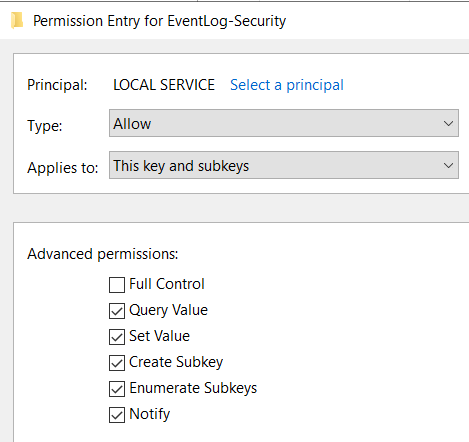
So Local Service try to Read/Write to this Key, let see what are the permissions after January patches
Local Service, which is part of Authenticated Users only have Read rights, BEFORE January patches, Authenticated Users was Full Control (and yes that’s kinda weird)
What is required not to have the error is giving Local Service the rights that it needed
You can see the EventID 40 on Windows 2012, 2016, 2019.
On Windows Server 2022, you get the Access Denied but no Event ID 40 !?!
Azure Shared Image Gallery is a really nice product in Azure where you can make available your images, replicate them in multiple regions and share images between multiple subscriptions. So if your enterprise uses many subscription for many reason, Shared Image Gallery give you the opportunity to keep only one set of images instead of have those images store in multiple subscriptions.
Deploy Shared Image Gallery
In my point of view, there not really a reason to deploy Shared Image Gallery as code since the idea is to only have 1 gallery. So i’ll go throught step by step to do it by the portal.
Deploy the Shared Image Gallery
I’ll use a new Ressource group named Images and call my Image Gallery « MyOrgImages »
Deploying this ressource is fast, about 20 seconds
You can Add a new image definition
At this time, you only have the definition of an image, nothing else. Now you need to integrate an image.
To do this, you first need to create a VM that you will after convert as Image
After the VM is completed, connect to this VM and generalized it by using sysprep
Since i shutdown the VM after the sysprep and a shutdown in the OS doesn’t do a proper shutdown in Azure, i also stop it in Azure to deallocate it.
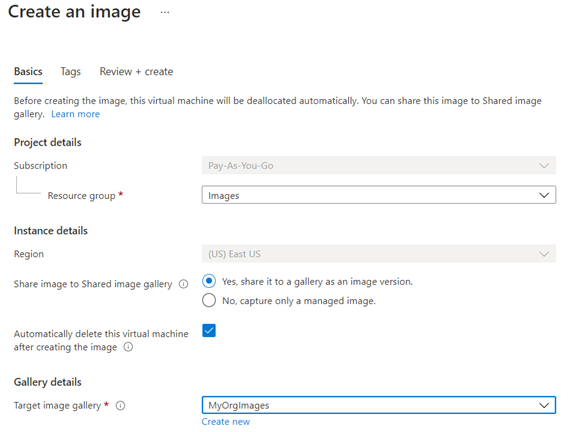
When Stopped (dealloacted), click on Capture and select the « Yes, share it to a gallery as an image version »
This step take around 15 minutes. As you can see i select to delete the VM when completed but this doesn’t delete everything related to the VM so you should do a cleanup (IP, NSG, NIC, Disk)
You can also add other regions where you want this image to be available.
Deploy a VM using an Image in Shared Image Gallery
For this part i prefered do it as a code since in most case that’s the way we should do it and it’s really easy to do it by the portal.
$imgDef="/subscriptions/xxxxxxxxxsubIDxxxxxxxxxxxxx/resourceGroups/Images/providers/Microsoft.Compute/galleries/MyOrgImages/images/Win2019Datacenter/versions/2021.03.0"
#Your destination resourcegroup
$vmResourceGroup="Images"
$location="eastus"
$vmName="My2019ServerName"
$adminUsername="Master"

#Your password, i'll use this funny one for now
$adminPassword="Solardwinds123"
$size="Standard_DS2_v2"
$licensetype="Windows_Server"

#Tag VM so easier in the future to search for VM build with the image
$tag="Img=MyOrgWin2019"

#destination Subscription ID
$subscription="xxxxxxxxxsubIDxxxxxxxxxxxxx"

az vm create --subscription $subscription --resource-group $vmResourceGroup --name $vmName --image $imgDef --admin-username $adminUsername --admin-password $adminPassword --size $size --license-type $licensetype --tags $tag
I recently went into a situation where i needed to get the RDS licensing usage per user to verify the count. So i went into the MMC snapin of Remote liscensing Manager, create a report, but it took like 30-40 minutes to generate and the result was not what i expected, the count doesn’t fit. I expect that maybe when another OS of the installed licences pack are use, example, TS 2012 servers using TS 2019 licences pack.
So to get my info i looked at the WMI classes used by RDS licensing and came out with this easy one liner in Powershell
Get-WmiObject -Query « select sIssuedToUser from Win32_TSIssuedLicense »
I was in a situation where Windows Defender was not the antivirus configured on the Windows Server 2019 boxes and the vulnerability scanner trigger that the servers has 2 vulnerabilities related to Windows Defender. The issue is that if you dont use Microsoft Windows Defender, you can’t patch it. Since Microsoft Windows Defender is not started the vulneralibility is not exploitable. But since we wanted to provide a clean vulnerability report and if in the future the client decide to use Windows Defender it will be patched, so i needed to find a solution. Here’s what i did to be able to patch it (scriptable).
GPO :
Computer Configuration > Administrative Templates > Windows Components > Windows Defender Antivirus
Turn off Windows Defender Antivirus = Disable
Add to this GPO scope the servers that i wanted to patch (remove Authenticated Users from the « apply GPO » rights
There’s a known bug out there where if you add CPUs to a virtual machine running Windows Server 2016 or Windows Server 2019, the result is a BSOD. Latest VmWare tools, VmWare Hardware doesn’t fix the issue. Same thing for a roll back on those item. Microsoft works on a fix that should be release this month
At this moment, Microsoft plan to publish in the rollup of March 2020 an update that change the default behavior of the LDAP and will be requiring LDAP Signing if you haven’t apply a registry modification. In the rollup of March 2020 Microsoft is looking to enable by default the LDAP Signing, so if you haven’t force the parameter by GPO or other method your LDAP clients that don’t use LDAP Signing would have troubles. No news from Microsoft for the new date.
Event ID 2887 in Directory Service tells you each 24h when an unsigned ldap attempt was done. So it’s a good indicator. If you want to identify where it comes from i suggest you to